

Documentation Index
Fetch the complete documentation index at: https://lindyai-docs-update-claude-guidance.mintlify.app/llms.txt
Use this file to discover all available pages before exploring further.
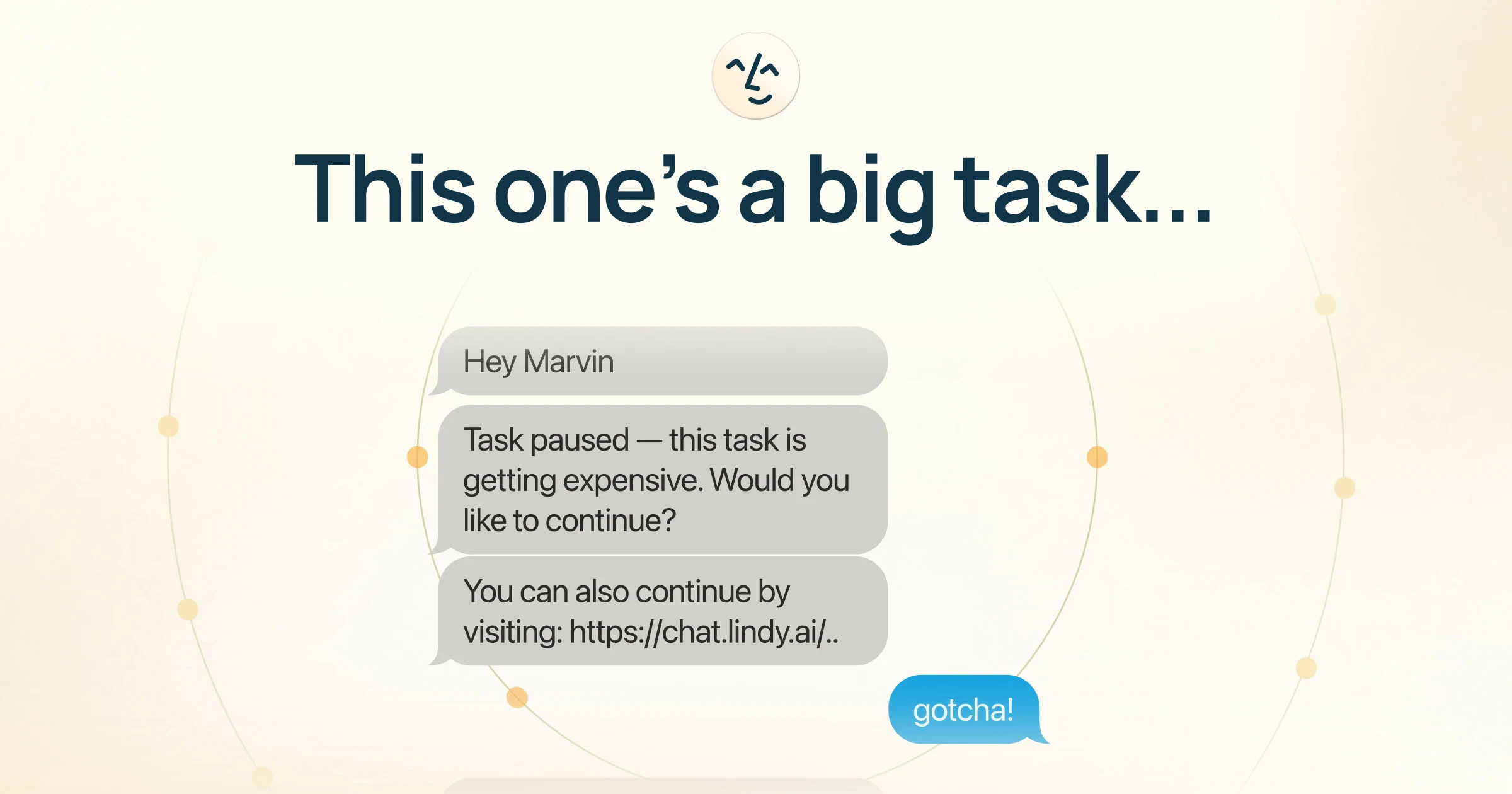
Usage Warning: Why Am I Seeing This?
Lindy paused a task because it’s using significantly more resources than usual. This is a protection for you, not an error. Every action Lindy takes uses part of your plan. When a task starts using more resources than expected, Lindy pauses to check in before continuing. This is most common with ad hoc research tasks, but can happen with any task. You can continue (the task finishes normally) or stop (no additional resources are used). If you stop, you can still chat with Lindy in that conversation and resume later.Plan Usage by Feature
Your Lindy plan covers all assistant features. Here’s a general sense of resource usage:| What Lindy does | Resource impact |
|---|---|
| Email triage and labeling | Very low |
| Drafting email replies | Low |
| Meeting prep briefings | Very low |
| Meeting recording and notes | Moderate |
| Scheduling and calendar management | Very low |
| Follow-up emails | Low |
| iMessage delegation | Low |
| Ad hoc research and tasks | Varies |
Checking your usage
To see your task usage, go to Settings → Billing, then scroll down to the usage section.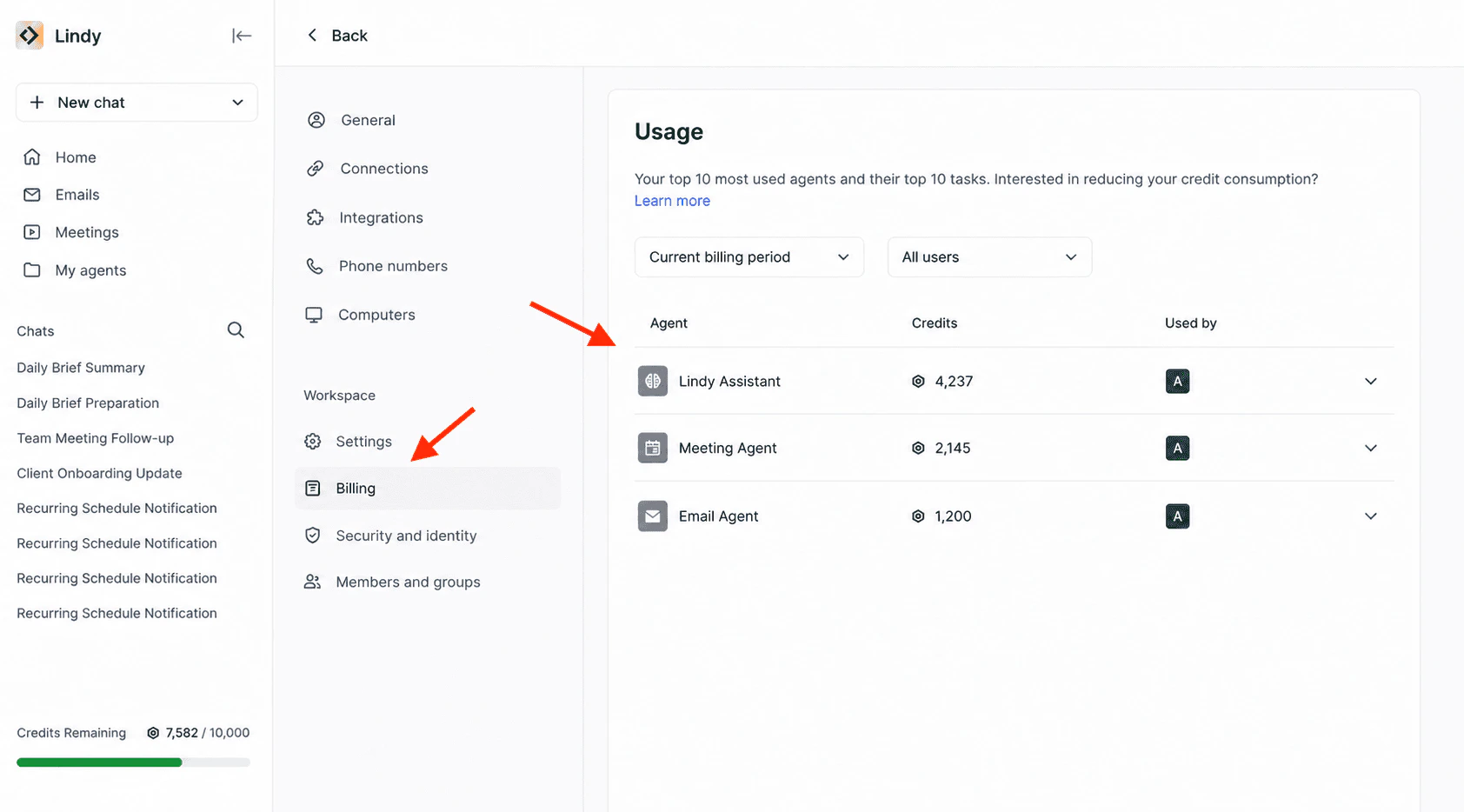
What Happens When You Hit Your Usage Limit?
- Your assistant pauses until your next billing cycle.
- Your data and settings are safe. Lindy won’t automatically restart paused tasks, but nothing is deleted. You can manually restart anything when your plan resets.
- Your plan resets monthly from your signup date.
What if I need more before my plan resets?
What if I need more before my plan resets?
You have two options:
- Upgrade your credits: Go to Settings → Billing → Upgrade to move to a higher plan on a month-to-month basis. Note that there is no option to purchase one-off credits.
- Enable Overages: In Settings → Billing, toggle on Overages to let Lindy continue working beyond your plan limit. Note that overage usage is charged at 2x the cost of regular Lindy credits.
Will my paused tasks pick up automatically?
Will my paused tasks pick up automatically?
No. When your plan resets, you’ll need to manually restart any tasks that were paused. Nothing is lost: your conversations, settings, and history are all preserved.
Credit Optimization
To reduce credit usage in Lindy Assistant, switch the model in your conversations to a more cost-effective option. You can set a default model for all conversations:- Go to chat.lindy.ai/home
- Open the model dropdown below the main taskbar
- Choose your preferred model
- Select Set as default