

Documentation Index
Fetch the complete documentation index at: https://lindyai-docs-update-claude-guidance.mintlify.app/llms.txt
Use this file to discover all available pages before exploring further.
Never Walk Into a Meeting Blind
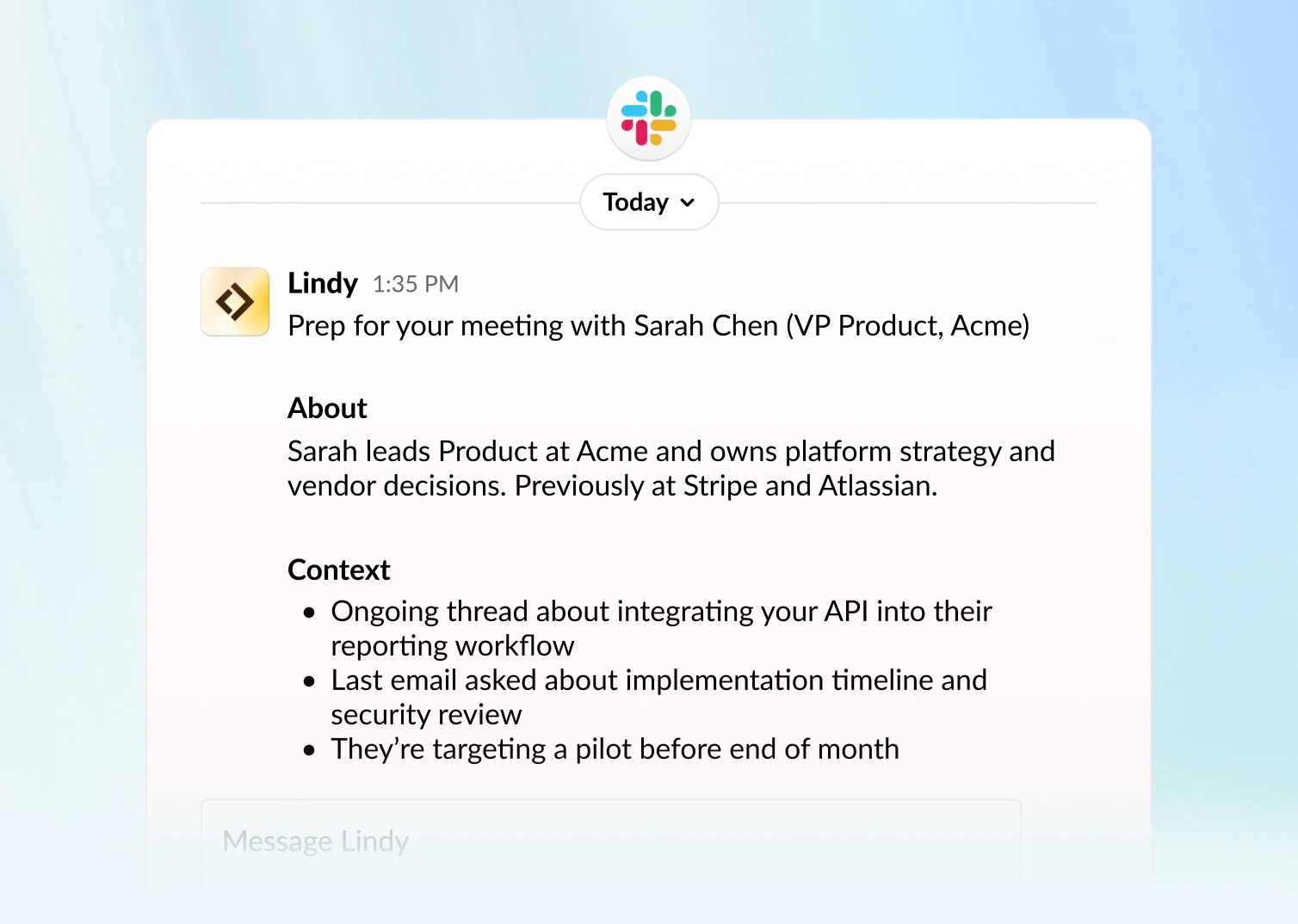
Delegate meeting prep to Lindy. Before every call, a briefing lands in your inbox or on your phone with who you’re meeting, what you’ve discussed before, and what’s on the agenda. You don’t have to ask.
What’s Included
| Section | Details |
|---|---|
| Time | When the meeting is scheduled |
| Meeting name | The title and subject |
| Attendees | List of all participants |
| Attendee context | For external attendees: job title, current company, and LinkedIn profile |
| Past meetings | Summary of previous meetings with the same people (if recurring) |
Which Meetings Get Prep
- All meetings: every event on your calendar
- External meetings only: skip internal team syncs, focus on client and prospect meetings
When You Receive Prep
To adjust these settings, go to Meetings in your Lindy settings, scroll down to Meeting Prep, and configure the time.
- Daily digest: receive all meeting prep at a set time each day (e.g., 5:00 AM)
- Before each meeting: receive prep a set number of minutes before the meeting starts (e.g., 15 minutes before)
How You Receive Prep
- Email: lands in your inbox
- SMS / iMessage: sent directly to your phone
To change how you’re notified, go to Meetings in your Lindy settings, scroll down to Meeting Prep, and update your notification preferences.
Customize Your Prep Format
You can write a custom prompt to control exactly how your meeting prep is written — including the tone, structure, and level of detail.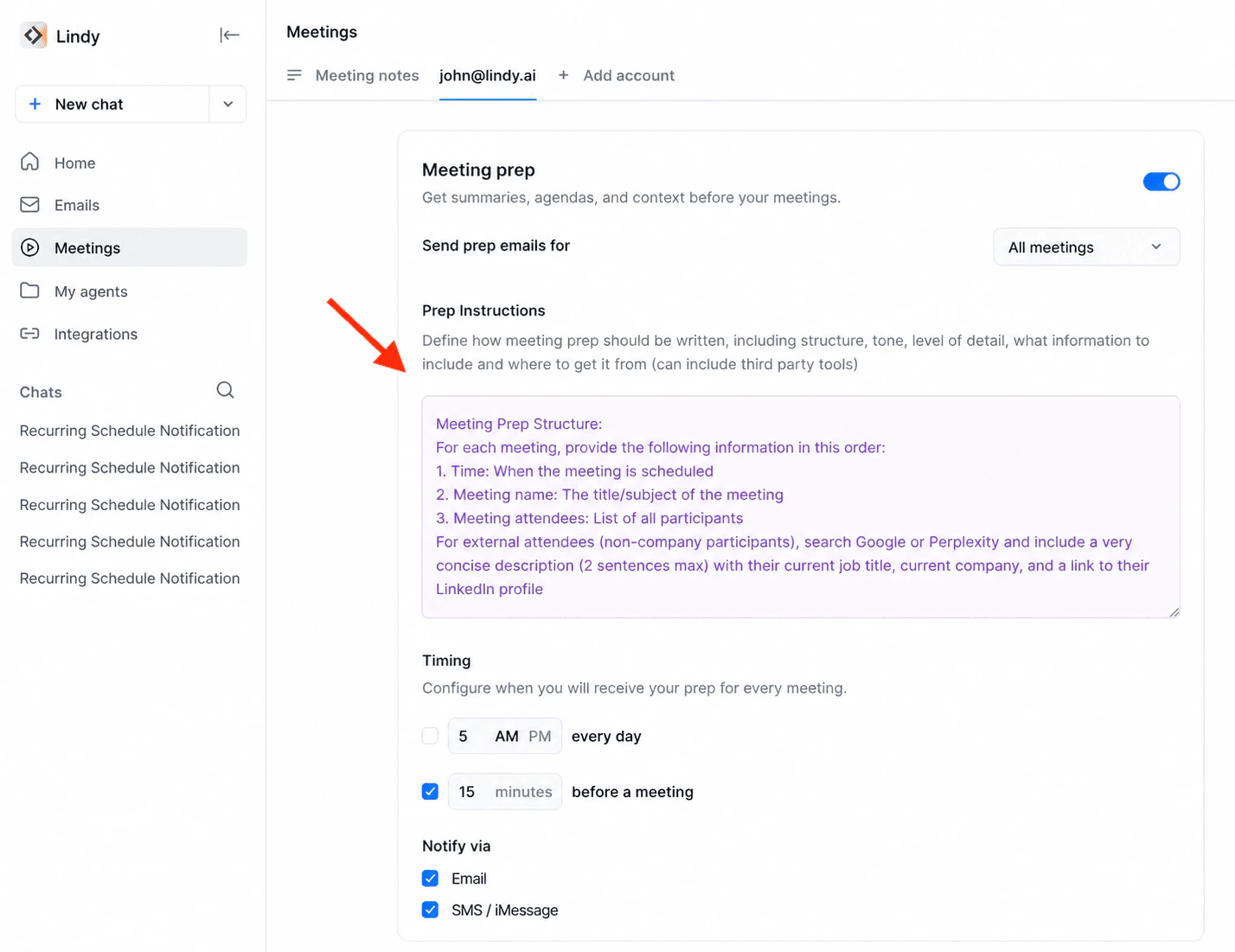
Next Steps
Meeting Notes
How Lindy records and summarizes your meetings
Follow-ups
Automatic post-meeting follow-ups